View antivirus results
| Antivirus | Status |
|---|---|
| Eset | Clean |
| Comodo | Clean |
| Symantec | Clean |
| McAfee | Clean |
| DrWeb | Clean |
| FSecure | No result |
Needs further review: this scanner has not returned a result for this version of the app. | |
| Kaspersky | No result |
Needs further review: this scanner has not returned a result for this version of the app. | |
| GooglePlayProtect | No result |
Needs further review: this scanner has not returned a result for this version of the app. | |
| ClamAv | Clean |
| ZonerMobileSecurity | No result |
Needs further review: this scanner has not returned a result for this version of the app. | |
App screenshots
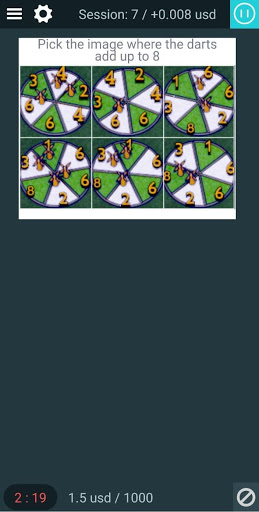
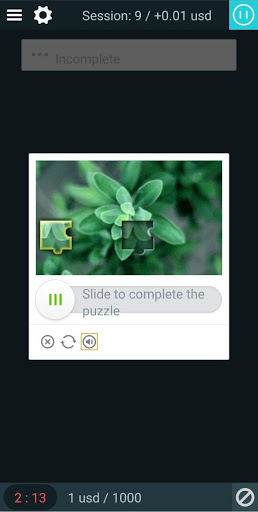

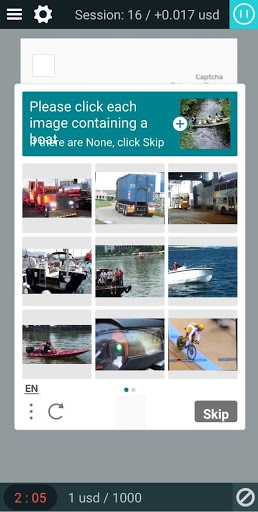


About this app
Application for 2captcha users. To work in the application you must have an account on 2captcha.com
Instruction:
There are two ways to authorize in the application - via scanning the QR-code or by entering the personal "Client KEY". To do this you need:
1. Sign in to your account on the site rucaptcha.com (in order to scan QR-code you should sign in from a PC or from another mobile device).
2. Ensure that you have selected a "worker" mode (you can see your current mode in the top right corner of the screen).
3. Scroll down to the "Solve captchas" block.
4. Your "Client KEY" is marked with blue color and you can also enable QR-code method by clicking the appropriate button "QRCode", which located under "Client KEY".
5. Copy-paste your Client KEY in the field that is above "Auth" writing in the mobile application and click "Auth".
6. In case you use QR-code based sign-in, click "QRCode" button and you will see square QR-code.
7. In the mobile application click on the gray-black square located above the "Auth" writing and your phone will switch to camera-mode.
8. Point the camera on a QR-code (from point 6 of this instruction) and your Client KEY will automatically appear in the appropriate field, then press Auth button.
What’s new
minor changes